• Globus is a service that allows the transfer of very large files (100s of GBs and TBs of data) with an auto-resume function and transfer verification.
• Connecting to Globus is a two-step process. First, you log in to the Globus service itself. Then you can log in to a specific collection.
• Most people will have a Globus account already, as you can log in with your University of Illinois Credentials.
IGB Managed Collections
| Collection Name | Description |
|---|---|
| biocluster.igb.illinois.edu | IGB Biocluster - http://biocluster.igb.illinois.edu |
- Log In to Globus within an Existing Organization
-
- Open a web browser (Firefox, Chrome, etc.)
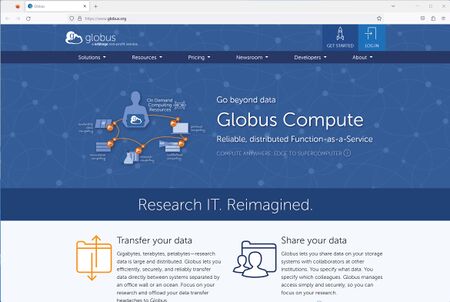
- In the address bar, please go to https://www.globus.org
- Top right corner of the website should have a link button, Log In. Please click here.
- Select the organization you belong to. Click Continue. For most people, this will be University of Illinois at Urbana-Champaign.
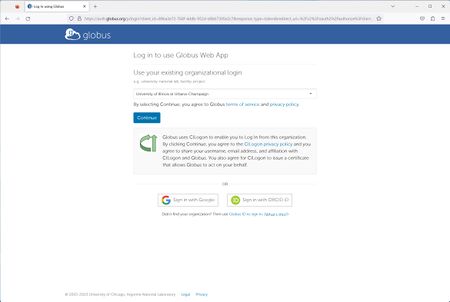
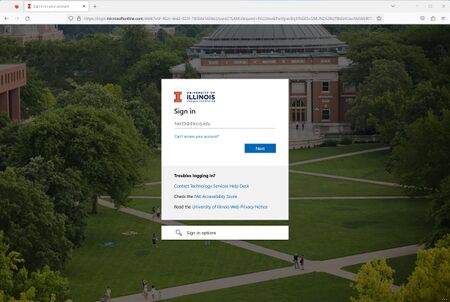
- If you selected University of Illinois at Urbana-Champaign, then proceed to login with your netID, campus password, and 2 Factor Authentication.
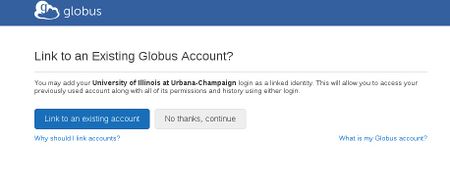
- If you previously had a Globus Account, then select Link to an existing account. If not select No thanks, continue.
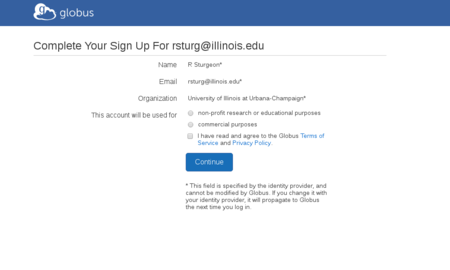
- Follow the next couple of screens to confirm your information
- Log In to Globus Using a Generic Globus Account
-
- If your organization is not listed, you can signup with a Globus ID instead.
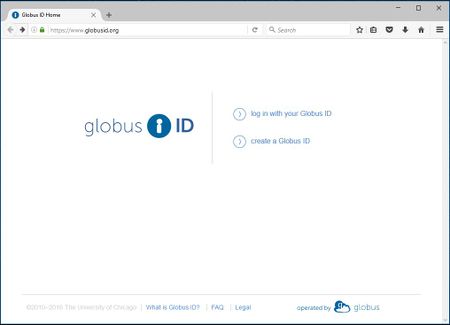
- Go to https://www.globusid.org and select Create a Globus ID.
- Enter the necessary information in its respective field. This account is not affiliated with the University of Illinois or IGB, so the username will be specific for Globus only.
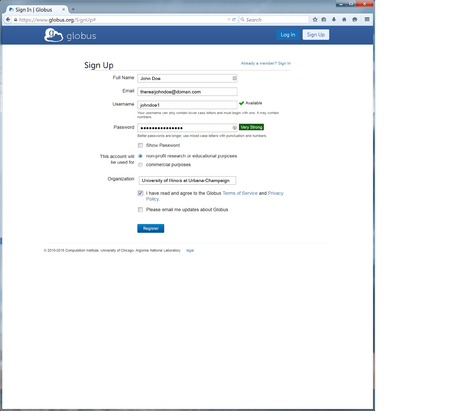
- Click Create ID and assuming your information is verified and accepted, Globus will send a verification e-mail to the e-mail you used in signing up for the account. Please check your e-mail for the Globus Verification e-mail and verify your e-mail address.
- You've successfully created your Globus Account.
- Collections
-
- Now you need to login to a Globus collection. We will be using biocluster.igb.illinois.edu as an example.
- Search for your collection in the Collection Search Box. For biocluster.igb.illinois.edu, it should find it like below.

- Select Continue to start the process to login to the Biocluster with your IGB credentials.
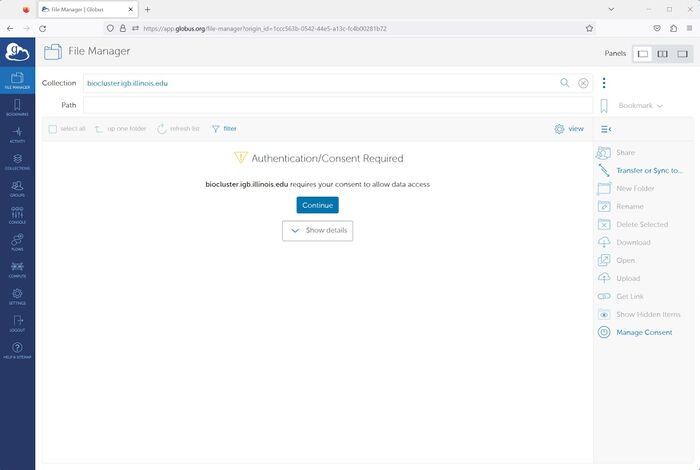
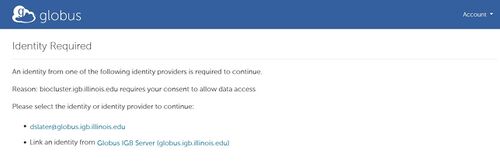
- Select Link an identity from Globus IGB (globus.igb.illinois.edu)
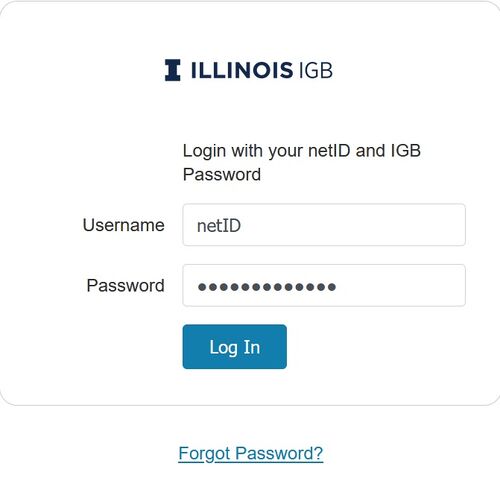
- Login with your netID and IGB password.
- Click Allow to link your Biocluster account with your Globus account
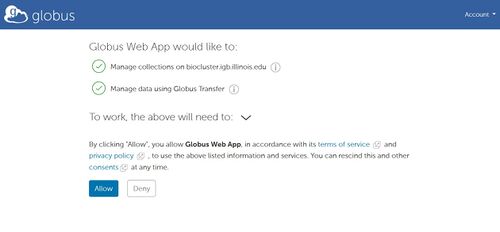
- You should now be able to browse your files on the Biocluster.
- Create Personal Endpoint
-
- A Personal Endpoint will allow you to transfer files from your computer to another Globus endpoint.
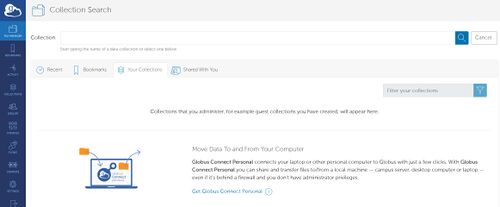
- Select File Manager > Your Collections. Then select Get Globus Connect Personal
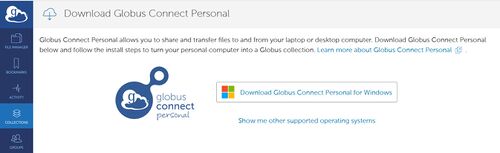
- Select Download Globus Connect Personal for Windows. You can select other operating systems also. Follow the installation prompts to install the software.
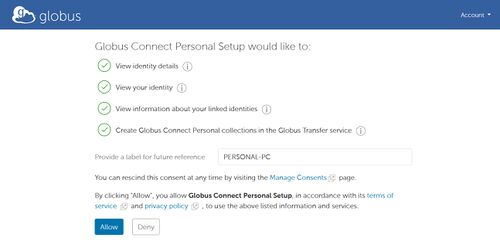
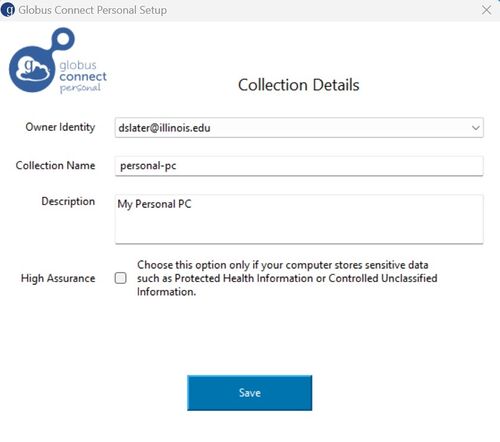
- After Installation, a web browser will open to provide a label name for your personal collection and to Allow the collection permission.
- In the final stage of installing the Globus Connect Personal, re-input your personal collection name and a description. Then select Save.
- Transferring Files
-
- Globus can be used to transfer files from one collection to another collection.
- Select the split panel in the upper right corner to show both collections you are trying to transfer from and to.
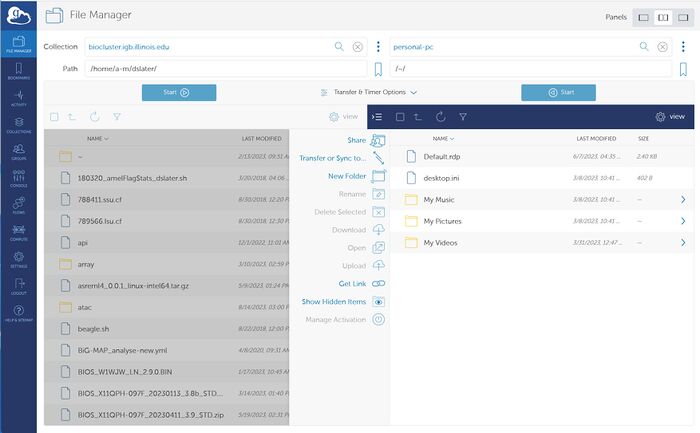
- For the first collection, enter the collection name. An example would be biocluster.igb.illinois.edu.
- For the second collection, enter another collection name. This could be your personal collection or another HPC with Globus installed.
- Select Files you want to transfer from one collection to another.
References
• https://www.globus.org/
• https://docs.globus.org/how-to/get-started/