Computer and Network Resource Group

Resources

AV and Events

If you have an upcoming event, feel free to reach out to CNRG at help@igb.illinois.edu to set up a meeting to go over your audio-visual support needs. We are happy to provide training in the use of our conference spaces, including the 612 auditorium, conference room 3000, and all theme conference rooms.

If you are organizing an event outside of the IGB, we can provide consultation and equipment recommendations. 

For more information about event consultation, please see the Event Planning Guide.
Conference Rooms

All our conference rooms are set up with Zoom Rooms. The following instructions apply to all
theme conference rooms and room 3000.

Wireless Screen Sharing

  1. On your computer, open the Zoom app.
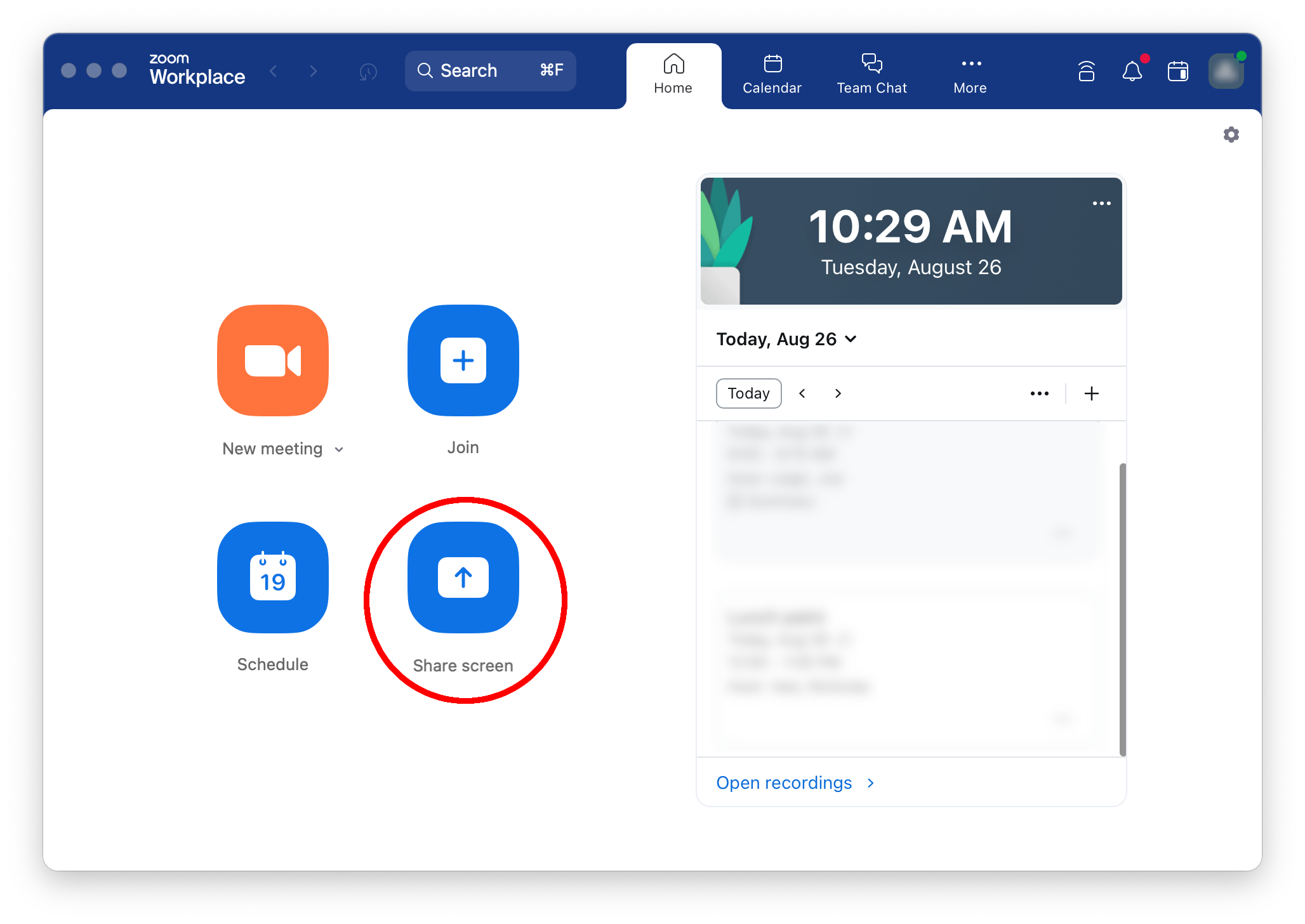
  2. Select "Screen Share" from the Zoom dashboard.

Zoom dashboard with the Share Screen button circled

  1. If prompted, type in the 6-letter sharing key shown on the top right of the screen in the conference room.
  2. To stop sharing your screen, click "Stop Share" at the top of your computer screen or on the touch pad in the conference room.
     
Room 612 Auditorium

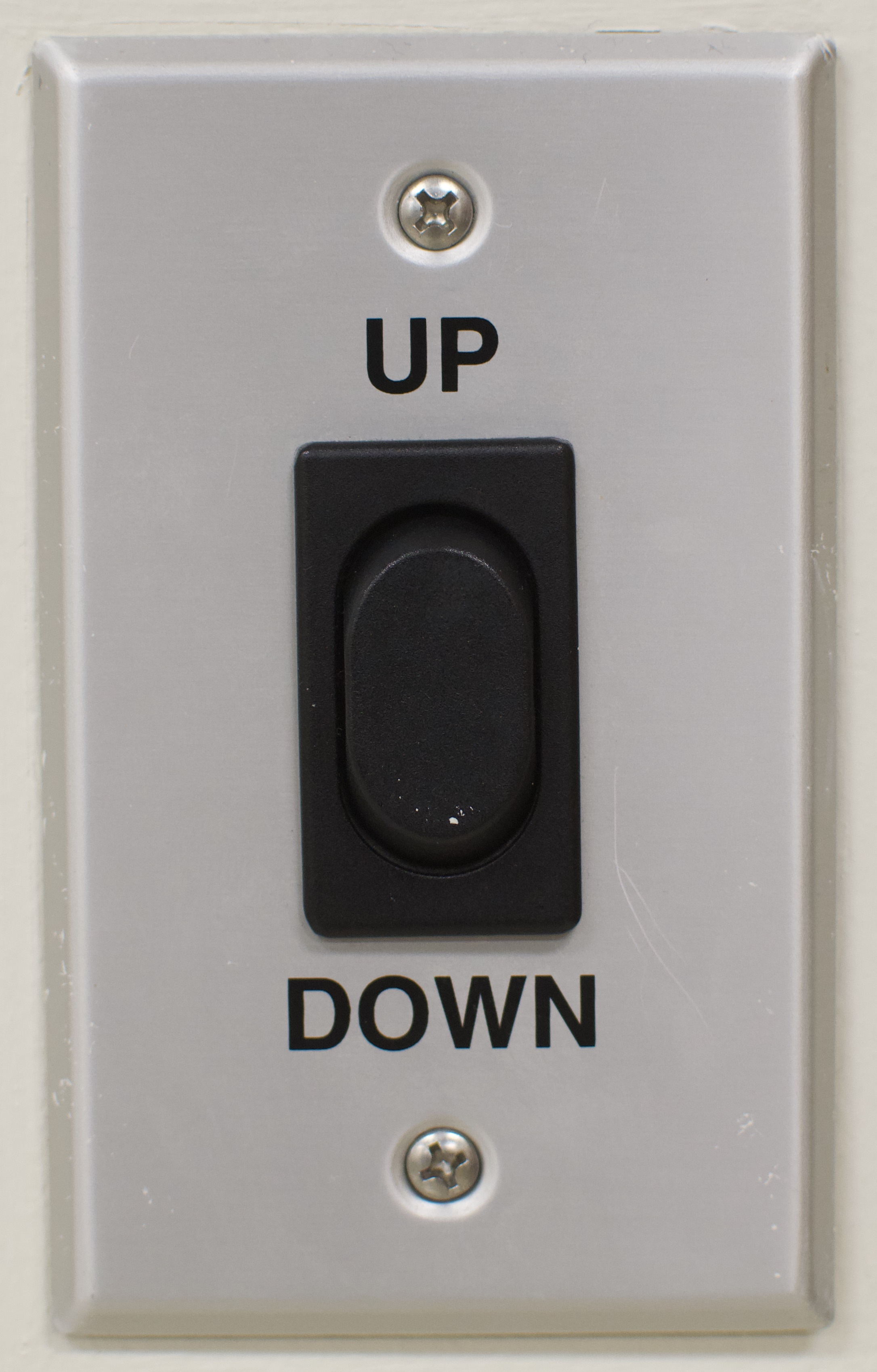
Projector screen controls

Projector screen controls are located to the right of the screen.


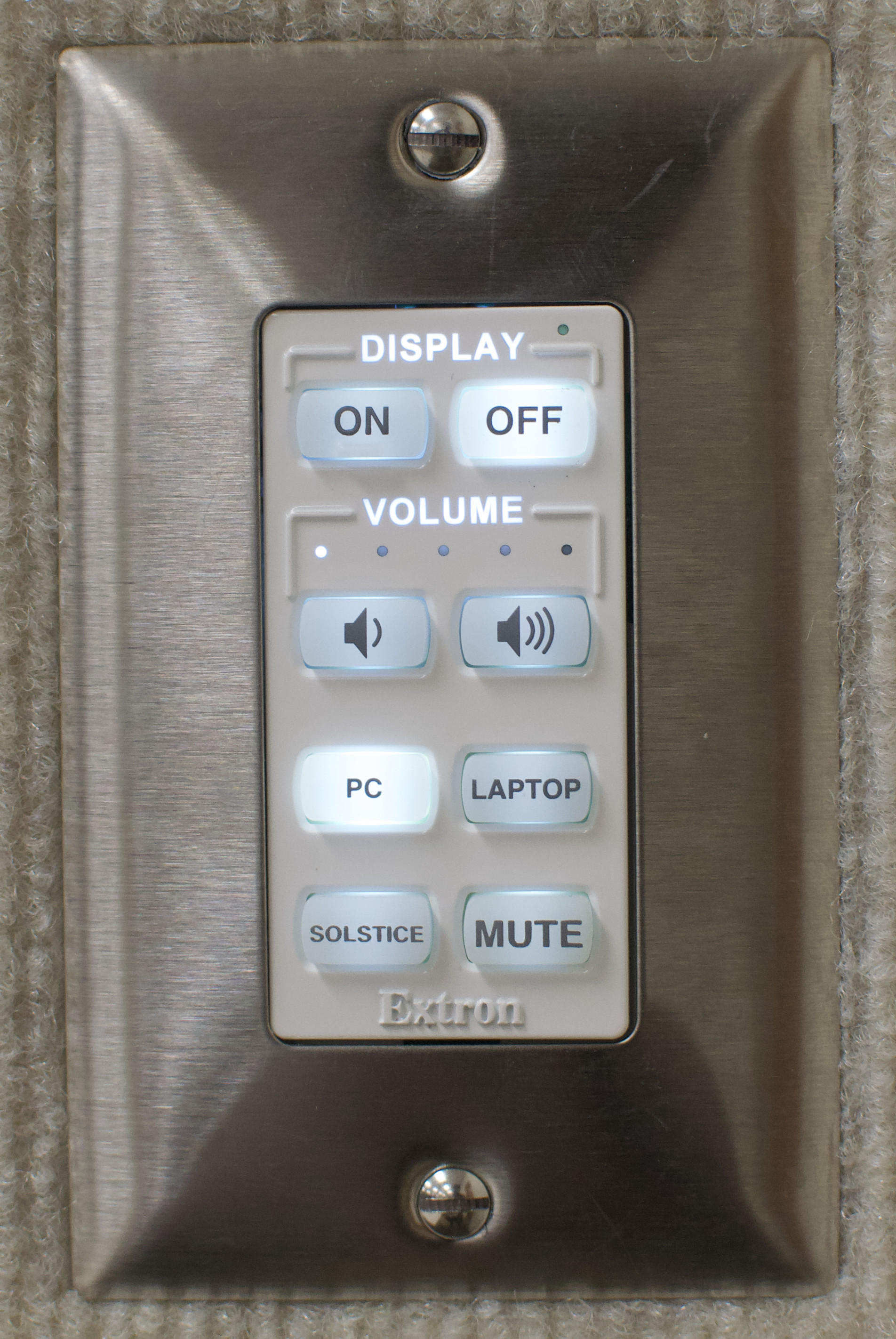
AV Controls

Located on the wall near the podium.

  • On/Off: Turns the projector and podium microphone on or off
  • Volume: Raises or lowers the podium microphone volume
  • PC: Display the room PC on the projector screen (see below)
  • Laptop: Display a connected laptop on the projector screen (see below)
  • Mute: Mutes room audio

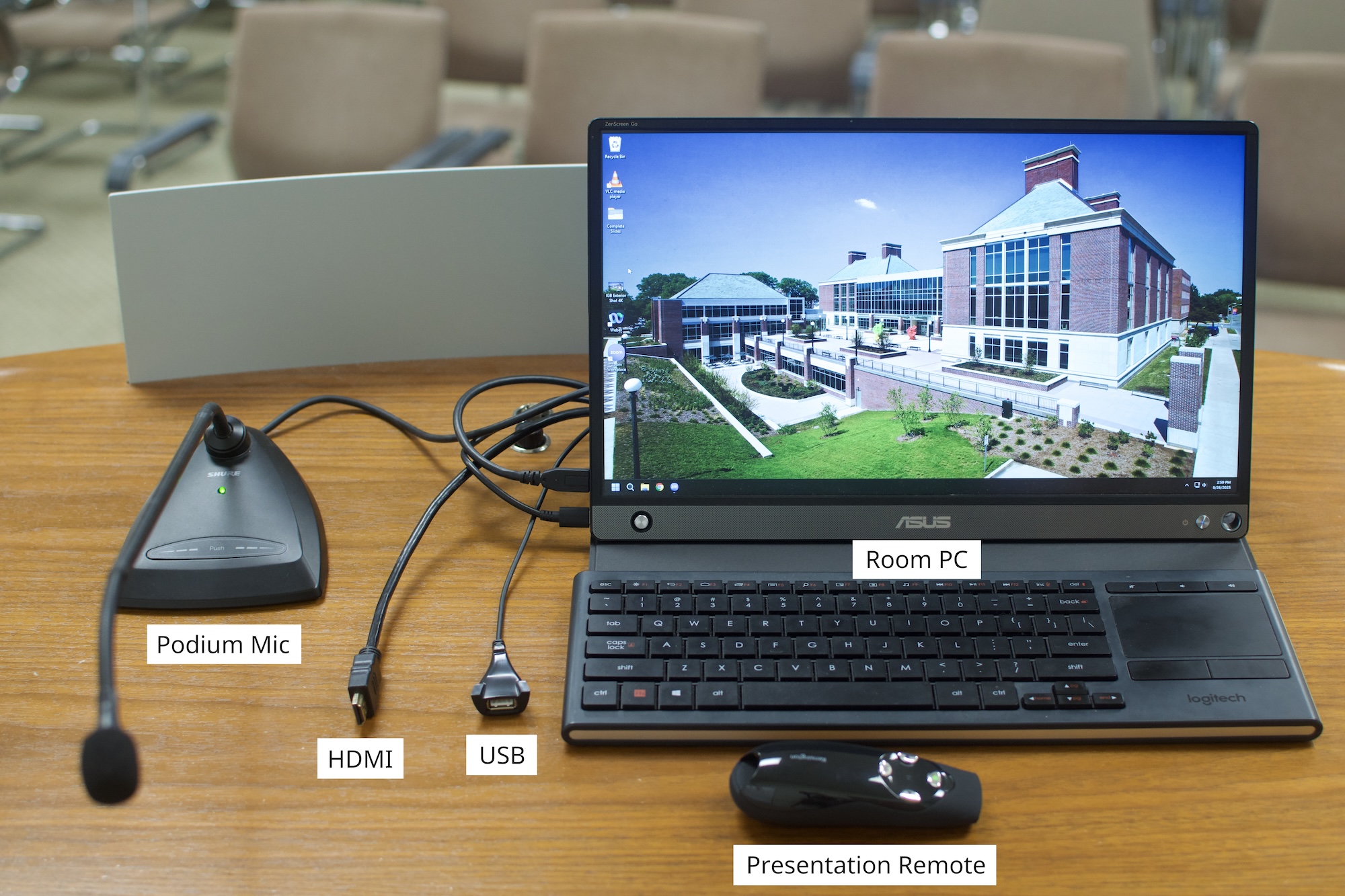
Podium

  • Room PC: A built-in Windows PC. Use the PC input (see above) to display it.
  • USB: Use this USB port to connect a flash drive to the Room PC.
  • Clicker: This presentation remote is connected to the Room PC.
  • HDMI: Use this HDMI cable to connect your laptop. Use the Laptop input (see above) to display it.
    • PC: If you have notes in your presentation you would like to refer to, use the shortcut “Windows + P” and select extended mode. Then put your presentation in presenter mode.
    • Mac: If you have notes in your presentation you would like to refer to, use the shortcut “Option + Return” to enter presenter mode.
  • Podium Mic: Use this microphone to address the audience.
Event Recording

Scheduling

Please contact us at help@igb.illinois.edu and provide the following information:

  • Dates and times
  • Room number (automatic recording is currently only available in room 612)
  • Title(s) for video

Written consent from the presenter is required. The presenter will need to use a microphone to be heard on the recording.

Viewing

Recordings can be viewed by anyone at our Opencast web portal https://vid.igb.illinois.edu/engage/ui/index.html 

Recordings will automatically be processed and uploaded to our server after the end of the event.

Recordings will be available for 1 year after the date of the event.
 

Loanable AV Equipment

AV equipment is available on a first-come-first-serve basis. Please contact us at help@igb.illinois.edu to request equipment. We will be happy to help you determine what equipment you need and show you how to use it. The following equipment is available:

  • Owl Labs Meeting Owl conference cameras
  • JBL portable sound system w/ microphone
  • Laptops
  • Clickers/presentation remotes
  • HDMI adapters