The IGB is equipped with gigabit network ports throughout the building and allows users to have a fast and uninterrupted network connection. By connecting to the wired IGB network, you are agreeing to adhere to our network policy. Read more about our network policy here.
Want to connect your computer to the wired network? | Having trouble connecting to the Wi-Fi?
How to Find the Hardware (MAC) Address
A hardware address, also known as a physical or MAC address, is a sequence of 12 letters and numbers which are used to identify a computer on a network. You will need to fill out a Network Activation Form to be connected on our wired network.
Follow the appropriate guide below to find your computer's MAC address. Make sure your network cable is plugged in while completing these steps as the MAC address may not appear otherwise.
- Windows 11
-
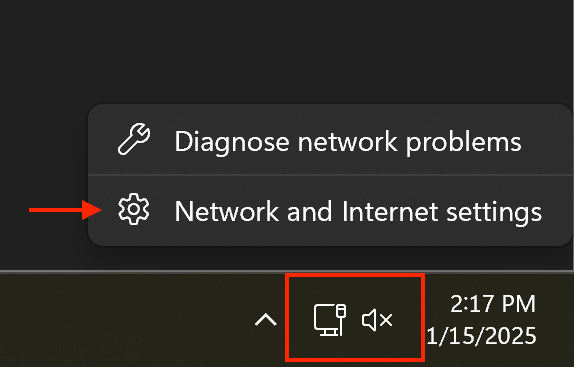
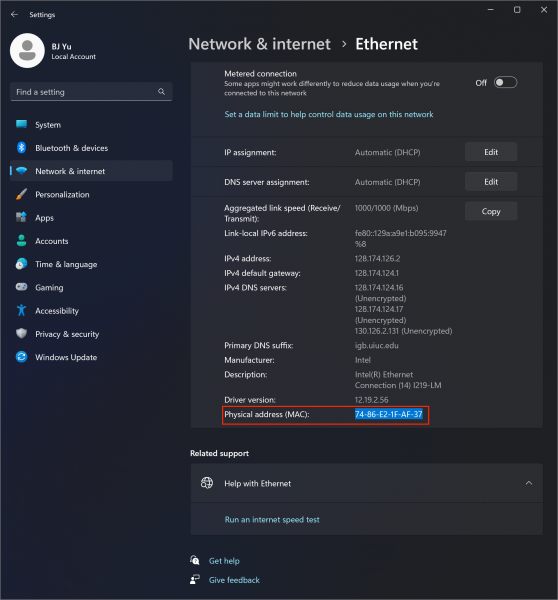
- Right click the bottom right of the task bar and select "Network and Internet settings" or open Windows settings and click "Network & internet".
- Click on "Ethernet"
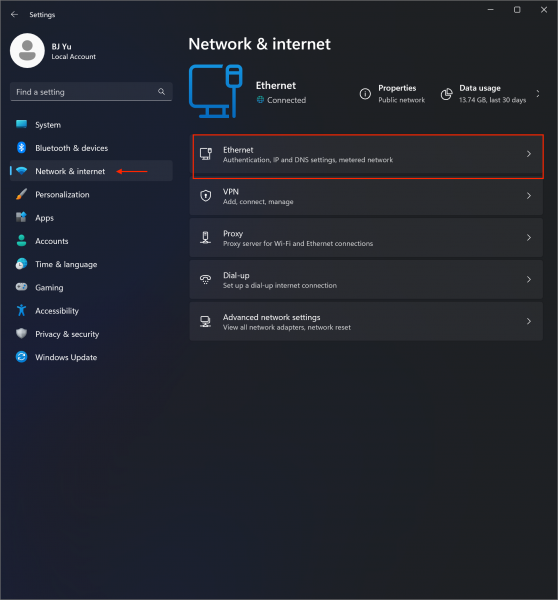
- The MAC address will be located towards the bottom of the page.
- macOS 14+
-
- Open "System Settings" and navigate to "Network". You can find your current and past ethernet connections indicated by the gray icon.
- You cannot find the MAC address of the adapter if the connection shows "Not connected".
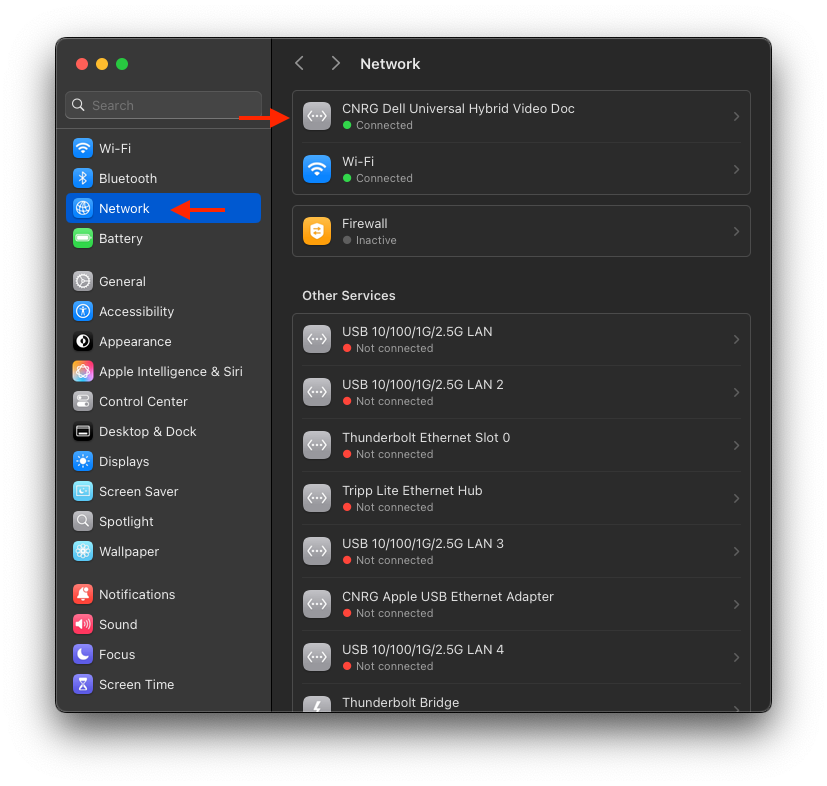
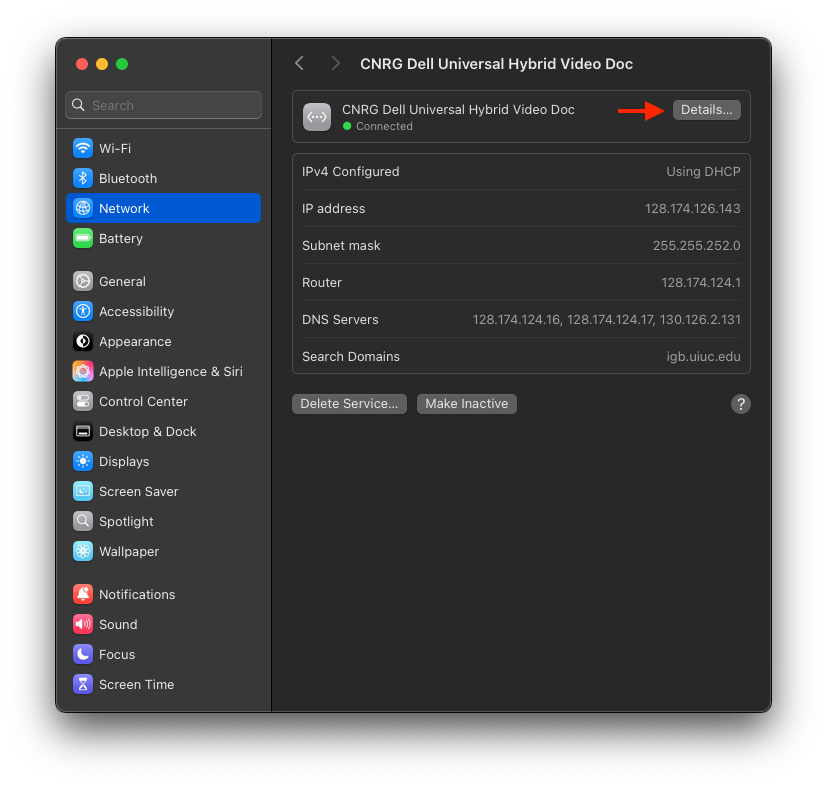
- Select the ethernet adapter you are connected to (dongle, dock, hub, etc.) and click "Details".
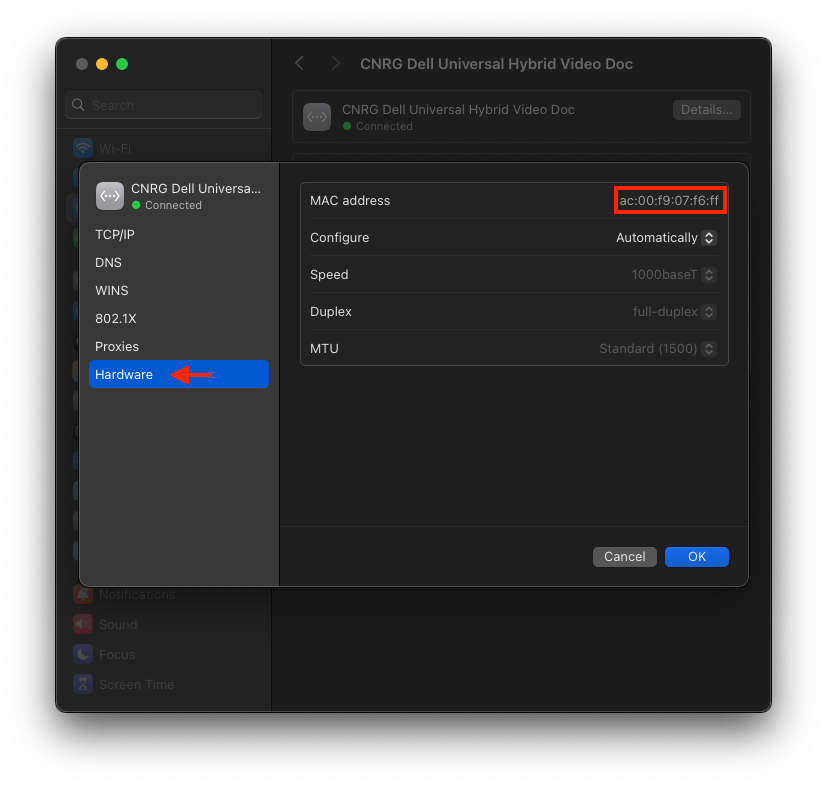
- Click on "Hardware" and you will find the MAC address on the top right.
- Open "System Settings" and navigate to "Network". You can find your current and past ethernet connections indicated by the gray icon.