

• Xserver is a method of accessing graphical applications on a remote Linux Machine from your local computer.
• This requires an Xserver program to be installed locally on your computer.
- macOS Setup
-
- Download XQuartz at http://xquartz.macosforge.org/landing/
- Install XQuartz and be sure to restart the computer after the installation is done.
- Open XQuartz by going to Go > Utilities > XQuartz
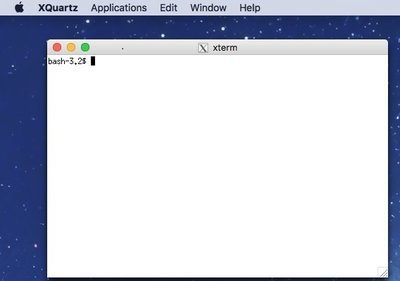
- Type in the following to connect to a remote server
ssh -X username@destination.server.edu- The -X after "ssh" tells the computer to connect using Xserver
- username - is your username
- destination.server.edu - the server you would like to connect too (example: biologin.igb.illinois.edu)
- Windows Setup
-
- MobaXTerm includes an xserver. This is the easiest method on a windows computer
- Download and install MobaXterm from https://mobaxterm.mobatek.net/
- Open MobaXterm and select Start local terminal
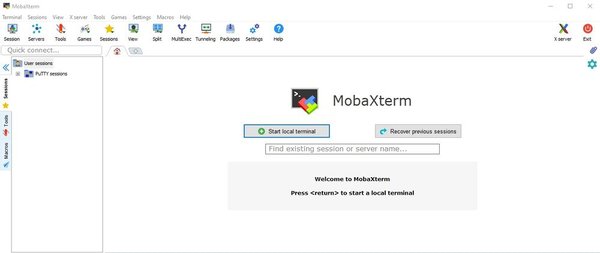
- Type in the following to connect to a remote server
ssh -X username@destination.server.edu- The -X after "ssh" tells the computer to connect using Xserver
- username - is your username
- destination.server.edu - the server you would like to connect too (example: biologin.igb.illinois.edu)
- Linux Setup
-
- Most versions of Linux have an Xserver built in.
- Open a terminal window.
- Type in the following to connect to a remote server.
ssh -X username@destination.server.edu- The -X after "ssh" tells the computer to connect using Xserver
- username - is your username
- destination.server.edu - the server you would like to connect too (example: biologin.igb.illinois.edu)
- Testing
-
- A good test is to run the program xterm. Most hosts will have this installed. It will open up a graphical terminal window.
[username@hostname ~]$ xterm
References
• http://xquartz.macosforge.org/landing/
• https://mobaxterm.mobatek.net/
• https://en.wikipedia.org/wiki/X_Window_System